
Troubleshooting Network Adapter Problems: A Comprehensive Guide
Network adapter issues are one of the most common causes of wired network breakdowns. They can result in slow connections, intermittent connections, or even complete loss of connectivity to your network. Having stable network connectivity is essential, and knowing how to troubleshoot network adapter problems can save you time and frustration. In this comprehensive guide, we'll walk you through the steps to diagnose and resolve network adapter issues.
If you encounter network adapter problems, the first step is to perform hardware troubleshooting. This involves checking physical connections and LED indicators to identify potential issues with your network setup.
Start by ensuring that all network cables or optical cables and network cards are securely and correctly inserted into their respective ports or slots. Loose or unplugged connections can lead to network disruptions. You can try unplugging the cards and reinserting them to ensure a proper connection. If the network adapter still fails to connect to your network, move on to the next step.
The LED indicators on your network cards can provide valuable information about the physical connection. If the link LEDs fail to light up, it indicates that the physical connection is not accessible to the network. There may be an issue with either the network devices or the network itself. Try inserting cables or adapters into different ports or slots to see if the ports or slots are damaged. If the problem persists and you have spare cables and NICs (Network Interface Cards), consider swapping them out to determine if the cables or NICs are faulty. If you don't have spare NICs or cables, you can install the card in another computer or server to further isolate the problem. If the issue remains unresolved, check the compatibility of the cables and network devices connected to your adapter to ensure their brand, data rate, and port type match.
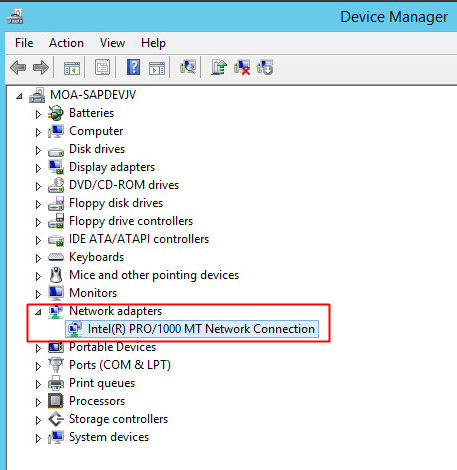
Use the Device Manager to verify if the network card is identified by your computer or server. Follow these steps:
Press Win+R on your keyboard to open the RUN box.
Enter "devmgmt.msc" in the box and click OK to open Device Manager.
Click on Network Adapters in Device Manager to expand this section.
Double-click on your network adapter entry to view the network card status on the General tab.
If the status shows "This device is working properly," it means that the network card is still functioning. Otherwise, specific problems with your card may need to be addressed.
Resource conflicts between the network adapter and other system components can also cause network issues. For example, a NIC should not share an IRQ (Interrupt Request) with SCSI or RAID controllers if possible. You can check and adjust these settings in the server BIOS program.
Press F1 during bootup to enter the Setup/Configuration Utility.
Look under Advanced Setup/PCI Slot/Device Information (or PCI Bus Control) and select the slot or device that needs to be changed.
Disable any unused devices to free up resources, such as serial ports and parallel ports.

Ensure that all protocols and network hardware are correctly set in your operating system. Verify that all IP addresses are unique and DHCP (Dynamic Host Configuration Protocol) is set correctly to automatically obtain a TCP/IP address.
To check TCP/IP installation under Microsoft Windows:
Right-click the "My Network Places" icon and select Properties. The network card should be presented as "Local Area Connection."
Right-click on the appropriate "Local Area Connection" and select Properties. In the Properties window, make sure that the "Internet Protocol (TCP/IP)" is installed.
If TCP/IP is not installed, click Install, select Protocol, and then click TCP/IP.
Once installed, make sure that "Obtain an IP address automatically" and "Obtain DNS server address automatically" are checked (if using DHCP).
To verify the TCP/IP address under Microsoft Windows:
Click Start, select Programs, select Accessories, and then click Command Prompt.
Type the command "ipconfig." This will list the IP address for the local machine.
If this returns a 169.x.x.x or 0.0.0.0 address, type the following commands: "ipconfig/release" and then "ipconfig/renew." This will attempt to obtain a new TCP/IP address appropriate to your network, along with a Default Gateway address.
Try to communicate with the Default Gateway by typing the command "ping x.x.x.x" (where x.x.x.x is the IP address of the Default Gateway).
To further troubleshoot network adapter issues, you can test the network stack on the machine by pinging the loopback address. The loopback address is a special IP address (127.0.0.1) that represents the local host. Here's how to do it under Microsoft Windows:
Click Start, select Programs, select Accessories, and then click Command Prompt.
Type the command "ping 127.0.0.1." This will send a message to the internal network stack on the machine. You should receive a response similar to this:
    Pinging 127.0.0.1 with 32 bytes of data:
    Reply from 127.0.0.1: bytes=32 time<10ms TTL=128
    Reply from 127.0.0.1: bytes=32 time<10ms TTL=128
    Reply from 127.0.0.1: bytes=32 time<10ms TTL=128
    Reply from 127.0.0.1: bytes=32 time<10ms TTL=128

    Ping statistics for 127.0.0.1:
    Packets: Sent = 4, Received = 4, Lost = 0 (0% loss),
    Approximate round trip times in milliseconds:
    Minimum = 0ms, Maximum = 0ms, Average = 0ms
To perform further network adapter testing, connect the system directly to another system or a client using a crossover cable or dumb-hub. Set up TCP/IP using two consecutive IP addresses (e.g., 10.1.1.1 and 10.1.1.2) with the default subnet masks (255.0.0.0). From a command prompt, try to ping the client's IP address. If the system receives a response, the network adapter is likely functioning correctly. If not, you can proceed to the next part of our guide, which focuses on software troubleshooting.
Address : 5F,Zhongshunyiquan Industry Park, Fuqian Road,Longhua District, Shenzhen, China
Address : 5F,Zhongshunyiquan Industry Park, Fuqian Road,Longhua District, Shenzhen, China
Tel : +86-755-23771707
Whatsapp : +86 13544277727
Email : sales@gezhi.net
Skype : 13544277727
Copyright Gezhi Photonics Co.,Ltd. All rights reserved.


